





Troubleshooting Wi-Fi IP Camera 2.4GHz 5GHZ Signal Network Disable 5GHz band Separate into distinct SSIDs Security System Singapore
in stock
$88.00
SGCCTV SINGAPORE CHOICECYCLE CCTV
Supply and Maintenance CCTV IP Cameras, NVR, Turbo HD TVI Cameras, DVR, PTZ Cameras,
Access Control System, Video Intercom.
Sim Lim Square 02-81 10am-7pm Daily.
Whatsapp Enquiry Project +65 98534404, Technical Support +65 81120788, Site Visit Maintenance +65 81985572.
in stock
Troubleshooting Wi-Fi IP Camera 2.4GHz 5GHZ Signal Network Disable 5GHz band Separate into distinct SSIDs Security System Singapore
Troubleshooting Wi-Fi IP Camera 2.4GHz 5GHz Signal Network – Security System Singapore
If your Wi-Fi IP Camera cannot detect or connect to the wireless network, one common reason is the router is using only the 5GHz WiFi band.
Many Wi-Fi CCTV IP Cameras only support 2.4GHz WiFi because 2.4GHz provides:
• Longer signal range
• Better wall penetration
• More stable connection for Security System devices
First Step – Check Router Brand & Model
• Check your router Brand and Model number.
Example:
TP-Link AX55
TP-Link Archer C6
TP-Link Deco X20
• Search in Google:
“Router Model Dual Band 2.4GHz 5GHz specification”
• Confirm the router supports:
Dual Band 2.4GHz & 5GHz Signal Network
If your router supports Dual Band, you may need to:
• Disable 5GHz band temporarily
OR
• Separate into distinct SSIDs for 2.4GHz and 5GHz
How to Troubleshoot Wi-Fi IP Camera 2.4GHz 5GHz Signal Network on TP-Link Router
Step 1 – Login to Router
• Connect phone or computer to the router WiFi.
• Open browser.
• Type:
http://192.168.0.1
or
http://tplinkwifi.net
• Login using router username and password.
Step 2 – Open Wireless Settings
• Go to:
Wireless Settings
or
WiFi Settings
• Look for:
2.4GHz WiFi
5GHz WiFi
Step 3 – Enable 2.4GHz WiFi
• Make sure 2.4GHz WiFi is ENABLED.
• Create separate WiFi names.
Example:
HomeWiFi_2.4G
HomeWiFi_5G
This helps separate into distinct SSIDs so the CCTV camera can detect the correct network.
Step 4 – Disable 5GHz Band Temporarily
During camera setup:
• Turn OFF the 5GHz WiFi temporarily.
• Connect the IP Camera to 2.4GHz network first.
• After setup completed, you may enable 5GHz again.
Step 5 – Connect Wi-Fi IP Camera
• Open the CCTV camera App.
• Search WiFi network.
• Select 2.4GHz SSID.
• Enter password.
• Complete camera setup.
Additional Troubleshooting Tips
• Move camera closer to router during installation.
• Restart router and IP camera.
• Disable Smart Connect or Mesh Steering temporarily.
• Use WPA2 password encryption.
• Avoid special symbols in WiFi password.
• Check signal strength and network stability.
Common Problem Symptoms
• IP Camera cannot find WiFi
• WiFi disconnected frequently
• Camera shows offline
• Weak signal network
• Camera setup failed
• QR code setup timeout
Security System Singapore Support
For Wi-Fi CCTV IP Camera troubleshooting, wireless setup, network configuration, CCTV installation, repair, replacement, and maintenance services in Singapore:
Website:
https://sgcctv.com.sg
WhatsApp:
+65 98534404
Email:
enquiry@choicecycle.com.sg
Troubleshooting Wi-Fi IP Camera 2.4GHz 5GHZ Signal Network Disable 5GHz band Separate into distinct SSIDs Security System Singapore
DAHUA CCTV CAMERA PTZ
DAHUA BUDGET IP CAMERA DH-ED125-E DH-SF125-E || DAHUA CCTV DOME 2MP HDW2241TP-S ||
DAHUA IP CAMERA IPC-HDW2249T-S-IL || DAHUA CCTV DOME 4MP HDW2441TP-S ||
DAHUA CCTV DOME 4MP DH-IPC-DHBW2441R || DAHUA CCTV DOME 4MP DH-IPC-DHBW2441E-S ||
Panoramic Network Fisheye IPC-EBW8630 || DAHUA CCTV Pan-Tilt-Zoom DH-SD29204T-GN-W ||
DAHUA CCTV Pan-Tilt-Zoom SD22404DB-GNY || DAHUA CCTV Pan-Tilt-Zoom SD22204DB-GNY ||
Dahua IVS Camera SD3A400-GN-A-PV ||
Dahua IMOU Cue C22P No Drilling Wall Ceiling || DAHUA IMOU CRUISER 4G ||
CCTV CAMERA BRACKET PFA135 PFA152-E LR1002 ||
DAHUA CCTV DVR NVR
DAHUA 32CH NVR NVR5432-EI DHI-NVR5832-EI || DAHUA 32CH NVR NVR5432-EI DHI-NVR5832-EI ||
Dahua Network Video Recorder NVR5432-EI || DAHUA 64CH NVR DHI-NVR5464-EI NVR5864-EI ||
DAHUA ACCESS CONTROL VIDEO INTERCOM || DAHUA Face Recognition Control DHI-ASI3213A-W ||
DAHUA VIDEO INTERCOM VTH2421FB(W)-P ||
DAHUA SWITCH SOLUTIONS
DAHUA Drone Thermal Camera DHI-UAV-V3300 || Industrial Drone Thermal Camera with Gimbal ||
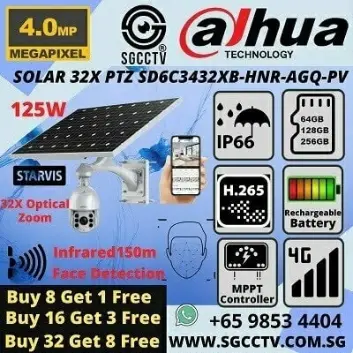
Video Wall System LS550UDM-EG Display Panels || Solar-Powered CCTV DH-SD6C3432XB-HNR-AGQ-PV 4MP 32X ||
Solar-Powered CCTV KIT DH-PFM364L-D1
1. Collection from SGCCTV Choicecycle Sim Lim Square CCTV SPECIALIST #02-81 11am~8pm. Whatsapp 98534404 for stock level before visit. 2. Payment by PayNow 201207820G
OPTIONAL : UPS Box + Battery + Exit Button + Emergency Break Glass + Em Lock + LZ Bracket / U Bracket $220.00 (PWP)
Troubleshooting Wi-Fi IP Camera 2.4GHz 5GHZ Signal Network Disable 5GHz band Separate into distinct SSIDs Security System Singapore


Nunc lacus elit, faucibus ac laoreet sed, dapibus ac mi. Maecenas eu ante a elit tempus fermentum. Aliquam commodo tincidunt semper. Phasellus accumsan, justo ac mollis pharetra, ex dui pharetra nisl, a scelerisque ipsum nulla ac sem. Cras eu risus urna. Duis lorem sapien, congue eget nisl sit amet, rutrum faucibus elit.
Donec accumsan auctor iaculis. Sed suscipit arcu ligula, at egestas magna molestie a. Proin ac ex maximus, ultrices justo eget, sodales orci. Aliquam egestas libero ac turpis pharetra, in vehicula lacus scelerisque. Vestibulum ut sem laoreet, feugiat tellus at, hendrerit arcu.
Nunc lacus elit, faucibus ac laoreet sed, dapibus ac mi. Maecenas eu ante a elit tempus fermentum. Aliquam commodo tincidunt semper. Phasellus accumsan, justo ac mollis pharetra, ex dui pharetra nisl, a scelerisque ipsum nulla ac sem. Cras eu risus urna. Duis lorem sapien, congue eget nisl sit amet, rutrum faucibus elit.
Reviews
There are no reviews yet.